Differences between the legacy editor and Form Studio
Last updated: September 25, 2026
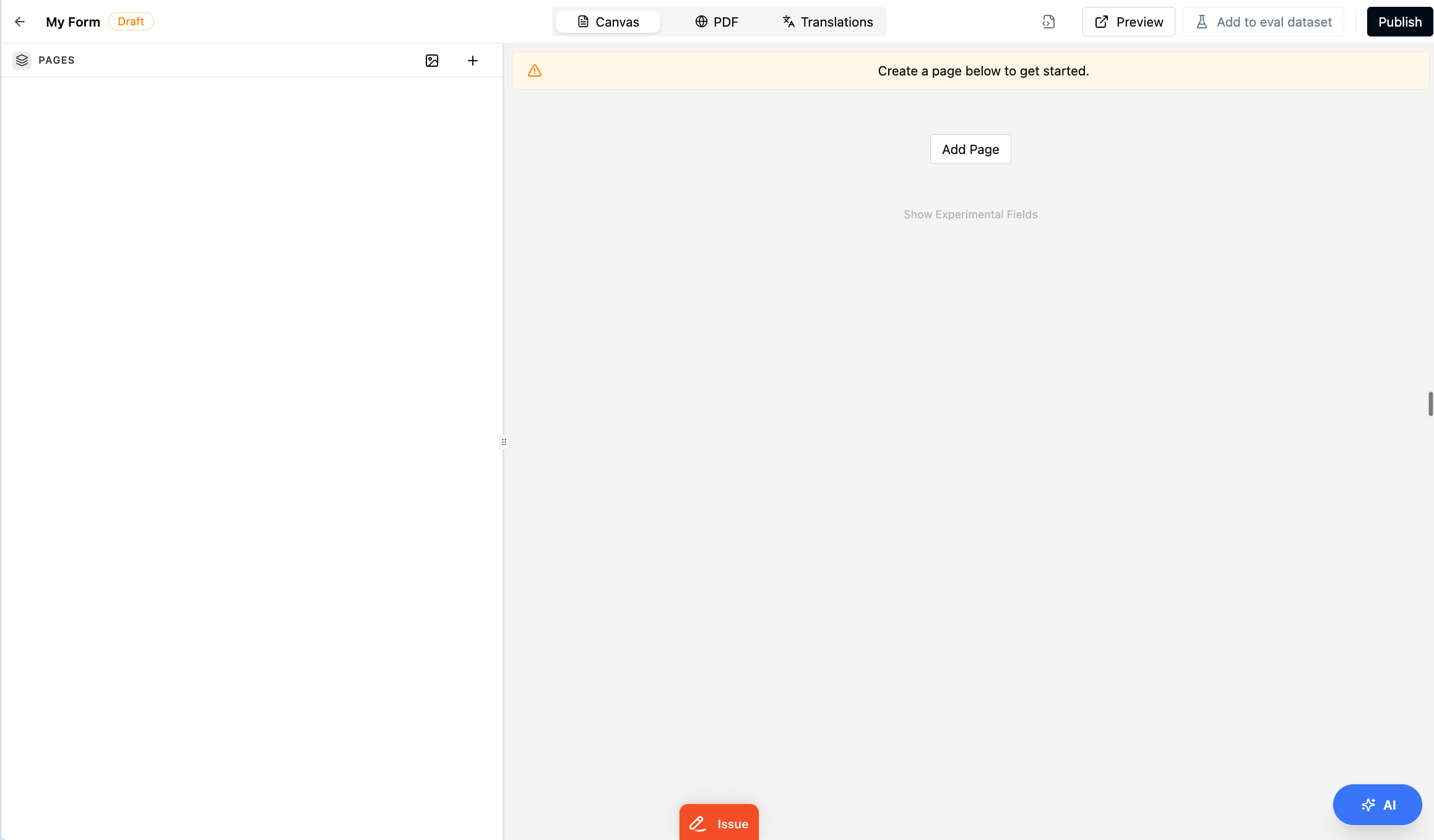
Form Studio is the new form editor. Your forms didn't change — most of the controls you already know just live somewhere else and a few things are new!
What's covered
This lists what moved, what's new, and what's no longer in the editor.
Your forms, fields, paths, rules, translations and PDF mappings are untouched. This is only about where you edit them.
Where things moved
What | In the legacy editor | In Form Studio |
|---|---|---|
Field settings | A docked panel on the right, with | The gear on a field opens the field settings popover — |
Page settings | A panel on the right holding the page name, the assignee, and the | The gear in the page bar opens the |
Translations | A separate page with a table of languages, one row each. | The |
PDF mapping | A separate page split across | The |
Auto-annotating a PDF | An | Ask Onboarded AI, or use the |
Generating mappings with AI | An | Ask Onboarded AI, or use the |
Assets | An | An icon button in the |
Raw YAML | A separate page, where saving opened an old-versus-new diff to review first. |
|
Auto-annotate no longer asks you to confirm. In the legacy editor it sat behind a dialog warning that it would clear the annotations already on your PDF. In Form Studio you ask Onboarded AI for it and it runs as soon as you accept. It still replaces what's there, so confirm you're on the PDF you mean before you ask.
What's new in Form Studio
What | What it does |
|---|---|
The Onboarded AI panel | A blue |
A chat that answers and edits | Ask what the form collects and you get an answer. Ask for a change and you get proposed edits, each with a before-and-after and its own |
Suggestions for this form | Checks run against your form as you edit and surface small fixes in the panel. |
| A switch at the bottom of the panel, off by default. On, the assistant applies its own edits instead of waiting for you. Removing a field still needs your approval either way. |
Undo and redo | In the panel header, covering your edits and the assistant's in one history. Undoing a deleted repeatable group brings the group back but not the fields inside it. |
One page, three tabs |
|
| Publishing a draft no longer means leaving for version history. |
Changing a field's type in place |
|
Limits on what the assistant builds | Onboarded AI creates 14 field types. Content blocks, review tables, timers, QR codes, repeatable groups, file upload, file view, formula and integration fields are added by hand from |
What's no longer in the editor
What | What to do instead |
|---|---|
The PDF mapping repair tools — | These cleared mappings left pointing at annotations that had been deleted. The |
The old-versus-new diff when saving YAML |
|
The unsaved-changes prompt between the form and its PDF | Because the tabs are one page now, moving from |