How do I build a policy?
Last updated: September 25, 2026
Walk through creating, configuring, and enabling a policy — the rule that decides which forms get assigned to which placements.
Before you start
You'll need at least one form on your account that's published and deployed (test mode is enough for now). Without a form to attach, your policy can't do anything yet. See 📄 How forms work if you're not there yet.
Permission to create policies. If you don't see a New policy button on the Policies page, an admin on your account will need to grant you access.
Steps
The flow has three phases: create the policy, attach forms, then enable it.
Create the policy
Open the Policies page from the left navigation.
Click New policy in the top right, then choose Start from scratch.
You should land on the New Policy form.
Tip: If you'd rather start from a description, click Draft with AI at the top of the form. Describe what the policy should do in plain English ("attach the DE-4 to anyone hired in California") and it'll pre-fill the name, description, and rules. You can edit any of it before saving.
Enter a Name. Pick something descriptive — "California new hires," "Forklift drivers," "All warehouse staff." Future-you will thank you.
Add a Description if you want internal context. Optional, but useful when other admins look at this policy later.
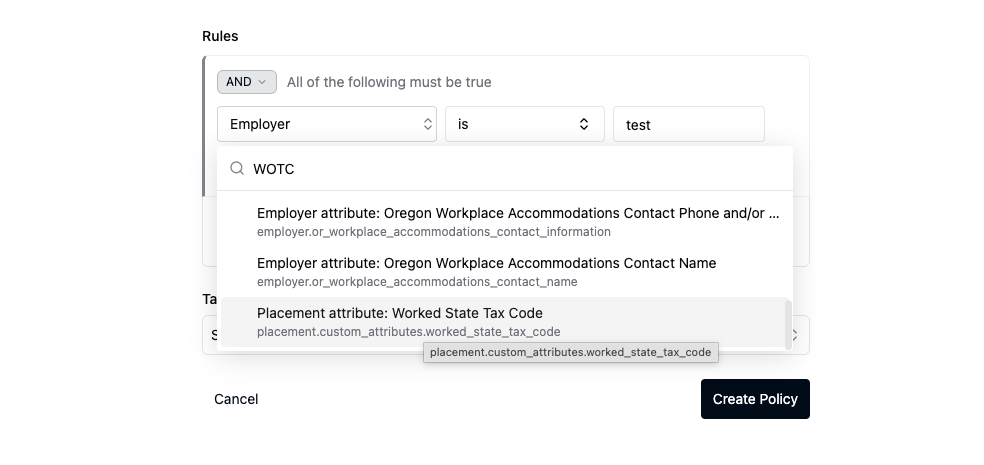
Build your Rules. The rule builder lets you set:
A fact — what to evaluate (e.g.,
client.name,job.name, a custom attribute). As you type you'll see different options available on your account.An operator — how to compare it (
is,is not,is in, etc.; see 📄 Rule operators for the full list).A value — what to compare against (e.g.,
California).
For more than one condition, use the And / Or group toggle to combine them.
Conditions are exact-match. California won't match california, and Forklift Driver won't match forklift driver. Make sure the value matches exactly what's stored on placements — case included.
Add any Tags you use to organize policies (optional).
Click Create Policy. You should land on the policy's detail page.
Attach forms
Your policy exists, but it has no forms yet — so there's nothing for it to assign.
Scroll to the Forms section on the policy detail page.
Click the dropdown labeled
Select a form to add...and search for the form you want to attach.Pick the form, then click Assign Form.
You should see the form appear in the policy's forms table.
Repeat steps 9–10 for any additional forms this policy should attach.
(Optional) For any attached form that should only attach under additional conditions, click Edit Conditions in its row and set a form-level rule. Forms with no conditions are assigned whenever the policy matches. (See 📄 How do I add form-level conditions to a policy? for the full walkthrough.)
Enable the policy
New policies start out disabled — they won't fire on any placement until you turn them on. This is intentional, so you can build and review a policy before it goes live.
Click Edit Policy in the top right of the detail page.
Flip the Enabled switch on.
Click Update Policy to save.
The detail page should now show the Status as
enabled, and the disabled-policy alert should be gone.
Verify
Create a test placement that should match your policy's rules. The forms you attached should appear on that placement automatically.
If they don't, check:
The policy's Status is
enabled. A disabled policy won't fire even if the rules match.The values in your rule match what's actually stored on the placement exactly — case included.
If you set per-form Conditions in step 12, those need to match too. Forms whose form-level conditions don't match won't be assigned even if the policy itself does.
The policy was enabled before the placement was created. Policies don't re-evaluate retroactively on existing placements when you change them — you'd need to manually re-run policy evaluation on those.
Related
📄 Understanding policies (Concept)
📄 How forms work (Concept)
📄 Rule operators (Reference)
📄 How do I fix a state-specific form that isn't being assigned? (How-to)