How do I set up the UKG Pro integration?
Last updated: June 19, 2026
Connect Onboarded to UKG Pro so a new hire's onboarding data flows into payroll. You'll set your credentials, sync UKG's code tables, choose which fields to collect, and let your payroll team submit each new hire from one review task.
Before you start
Admin access to your account's
Integrationssettings.Your UKG Pro API credentials: the
UKG Pro base URL, a UKG service user (username and password), and yourCustomer API key.A UKG service user with permission to read code tables and post new hires.
Connect your UKG Pro credentials
Open the integration. From your account settings, open
Integrationsand chooseUKG Pro.Enter your credentials. Fill in your
UKG Pro base URL, theUsernameandPasswordfor your UKG service user, and yourCustomer API key. The password is stored encrypted at rest.Save. If you rehire former employees through Onboarded, turn on
Allow posting rehires, then selectSave & Continue. The integration will show asConfigured.
Sync UKG's code tables
Onboarded fills coded dropdowns — company, location, job, and similar fields — from UKG's own code tables, so the values your team picks always match what UKG expects.
Open the Fields step and select
Sync code tables.Confirm the sync. Wait for each table to show a
Syncedstatus. If one showsFailedorPartial failure, selectRetry sync.
A sync pulls the full set of values UKG has configured, not a shortlist. Long code tables can make dropdowns hard to scan, and labels come straight from UKG — often legal entity names rather than the business names your managers recognize. Use the field defaults and Required toggles below to keep the review task tight, and adjust labels in UKG Pro if they're confusing.
Choose which fields to collect
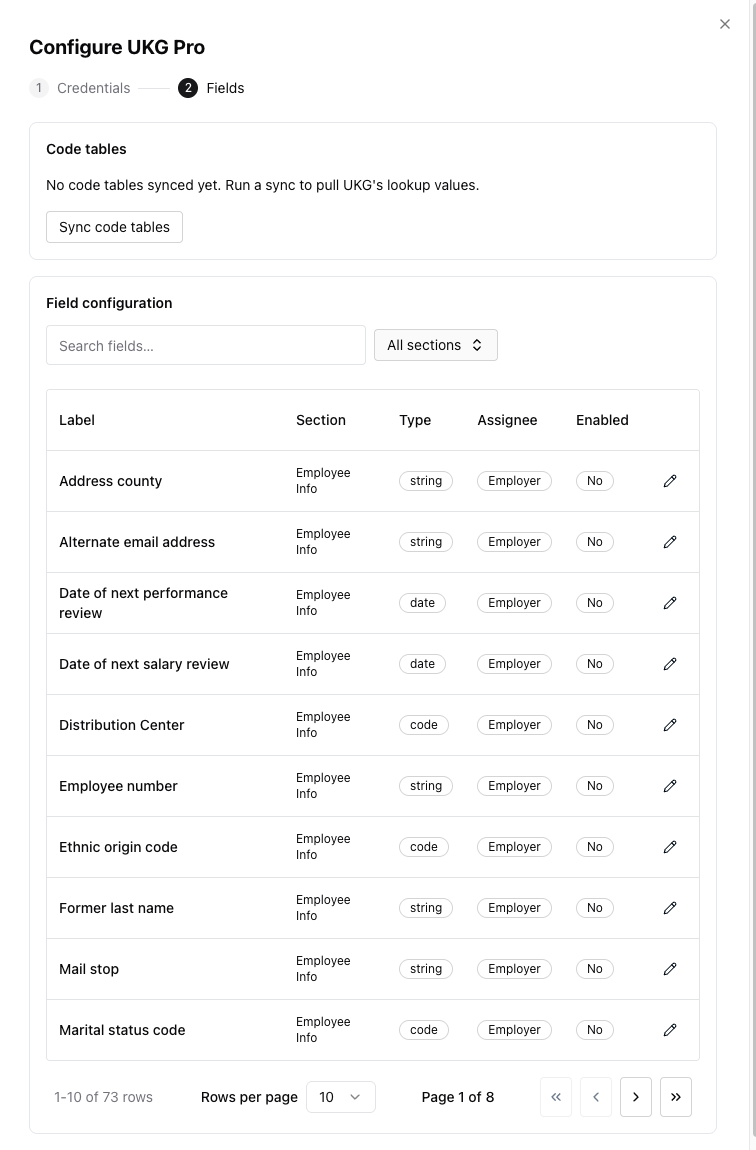
Review the field table in the
Fieldsstep. Each field has aSection, aLabel, anAssignee(EmployeeorEmployer), aRequiredtoggle, and aDefault value. UseSearch fields…to jump to a specific field.Assign and trim. Set the
AssigneetoEmployerfor anything your payroll team owns rather than the new hire — accruals and auto-pay settings are common examples. ToggleEnabledoff for fields you don't collect, then selectSave.
How a new hire reaches UKG Pro
The integration adds a UKG Pro task — an employer-facing review form that gathers everything UKG needs in one place. It sits late in the task sequence so the new hire's own forms are finished first. The task consolidates employee info, job information, federal and state withholding, direct deposit, and accruals. Your payroll team confirms the employer-owned fields and selects Submit to UKG Pro.
If UKG rejects the submission, Onboarded surfaces the validation errors inline and the task highlights the fields to fix. Once UKG accepts it, the task shows Submitted to UKG Pro.
Many teams trigger an automation that emails payroll once the new hire and their manager finish, with a link straight to the UKG Pro task.
Verify
A new hire is wired up correctly when their UKG Pro task opens with the code-table dropdowns populated, the employer-owned fields waiting for payroll, and Submit to UKG Pro available. After submitting, the status reads Submitted to UKG Pro.
If dropdowns are empty, re-run Sync code tables. If Submit to UKG Pro stays disabled, a required field is still empty — the task highlights which one.