Understanding layouts for policy acknowledgment forms
Last updated: October 16, 2026
A policy acknowledgment form puts a document, like a remote work policy, in front of a candidate and records that they agreed to it. There are three common ways to lay one out, and each one balances completeness, readability, and upkeep differently.
What it is
A policy acknowledgment form is a form whose job is to show the candidate a document and capture their agreement. Think employee handbooks, remote work policies, acceptable use policies, and the client policies a staffing account passes along to its workers. In this article, "policy" means that document. It's different from an Onboarded policy, the rule that decides which forms a placement gets.
Every layout has the same three parts: the document in some form, an acknowledgment statement, and a signature. What changes is how the document itself shows up in the task.
If you remember nothing else: the layout decides how the candidate meets the document, and the signature is what makes the acknowledgment hold up.
Why it matters
When customers review the forms built for them, policy acknowledgments are where reviews most often stall. The form works, but nobody has decided how a 12-page PDF should read on a phone, or whether a summary is allowed. Picking a layout up front saves a few rounds of handovers.
This matters most when:
A client contract or your legal team says how the document has to be shown.
The document runs past a few pages.
Most candidates finish onboarding on a phone.
The document changes often, so someone has to keep the form current.
How it works
Option 1: The full document, scrolled before signing
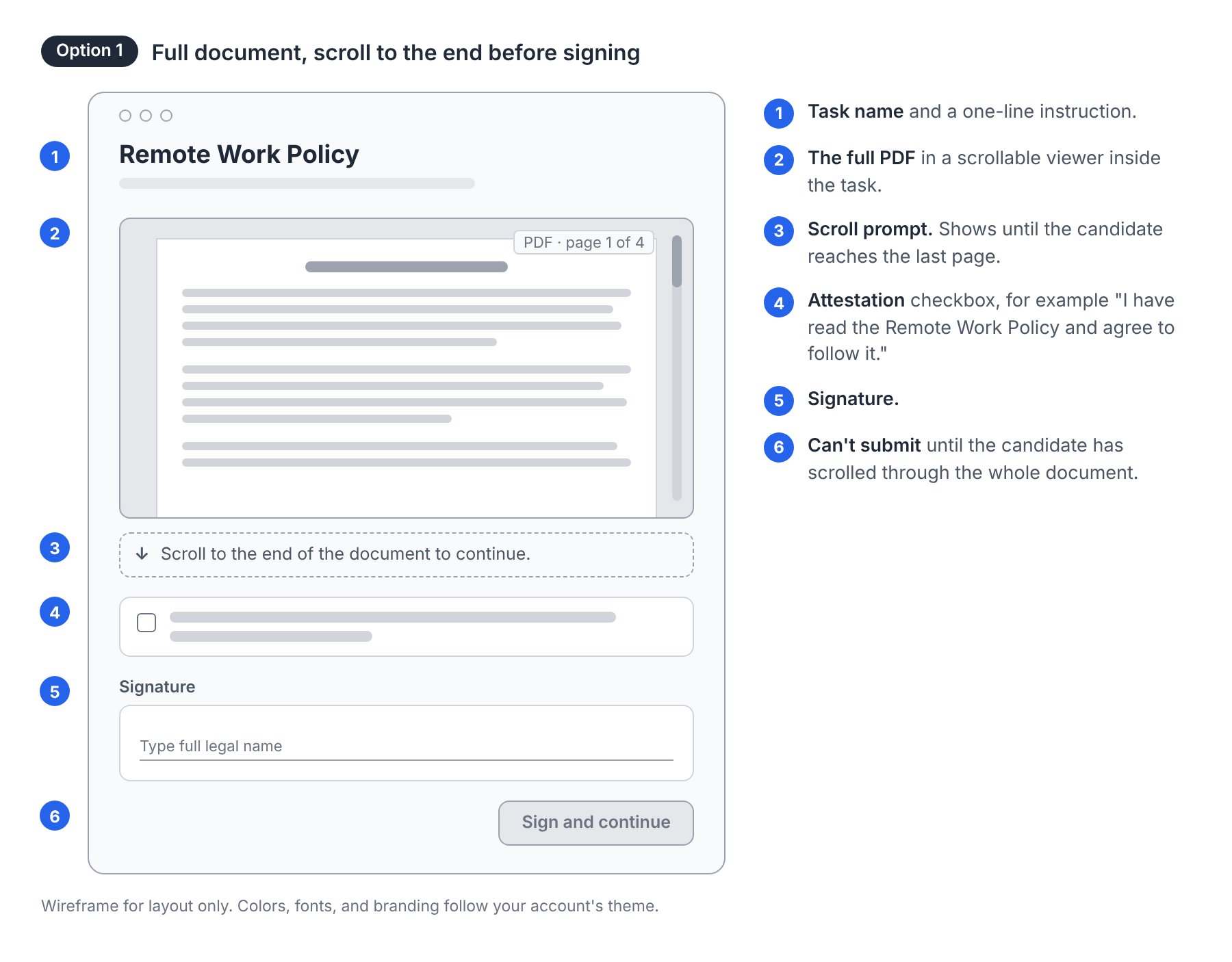
The task shows its name, the document itself in a scrollable viewer, an attestation checkbox, and a signature. When the viewer is required, the candidate sees Scroll to the end of the document to continue. and can't submit the page until they've scrolled through the whole document. Onboarded records when they finished reading.
Works well when the candidate has to see the document exactly as issued, or a client contract says so.
Watch for long documents with small print. On a phone, a 20-page PDF means a lot of scrolling and zooming before the candidate can sign.
How it's built: 📄 How do I add a PDF View field to a form?
Option 2: A short summary with a link to the full document
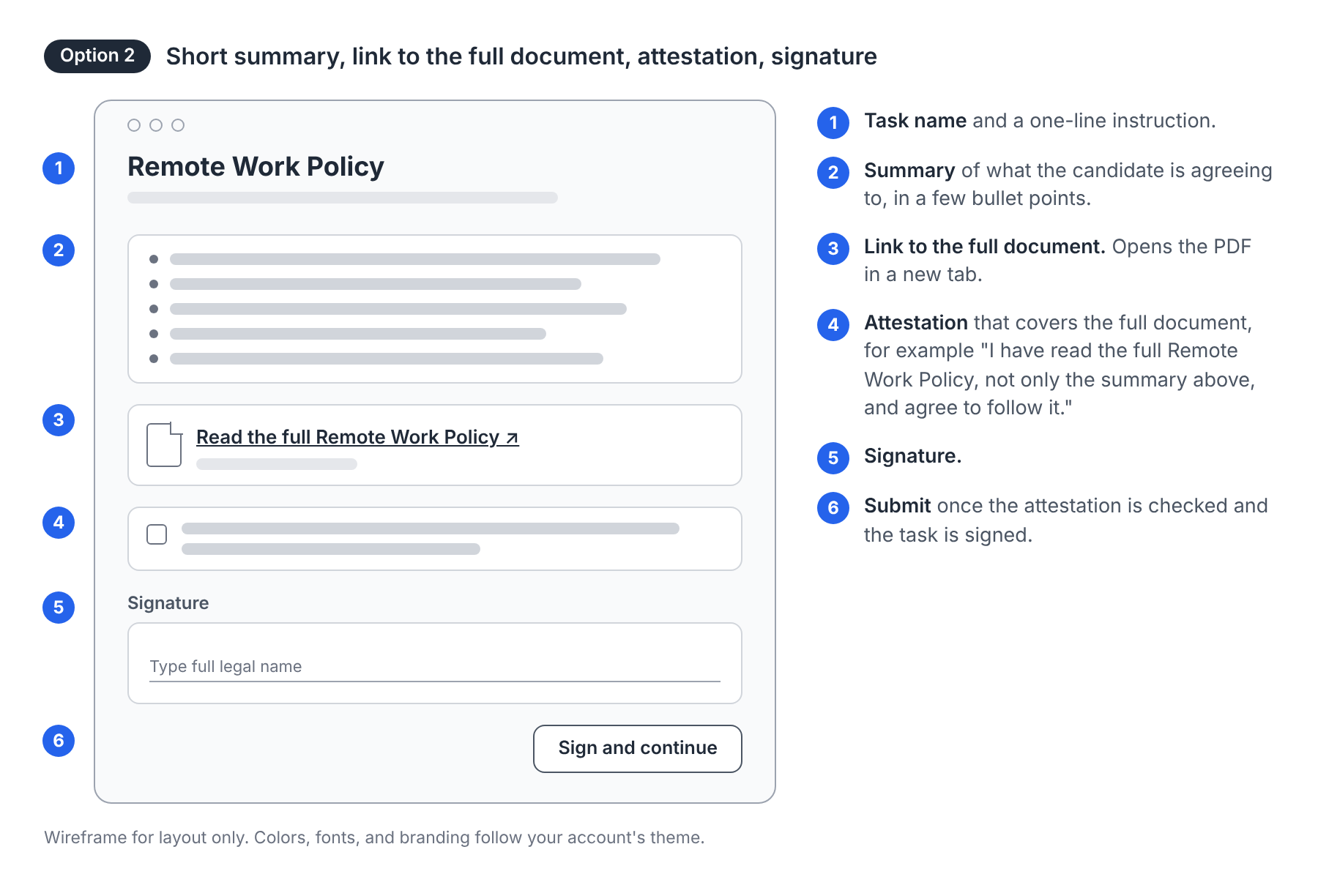
The task gives a few bullet points on what the candidate is agreeing to, a link that opens the full document in a new tab, an attestation that names the full document, and a signature.
Works well for long documents, like handbooks and packets with several exhibits, and for candidates who finish onboarding on a phone.
Watch for two things. Onboarded can't confirm the candidate opened the link, so the attestation and signature carry the acknowledgment. Word the attestation to cover the full document, not only the summary. And someone has to keep the summary in step when the document changes.
How it's built: 📄 How do I link a document to a form using Assets?
Option 3: The document's text, copied into the task
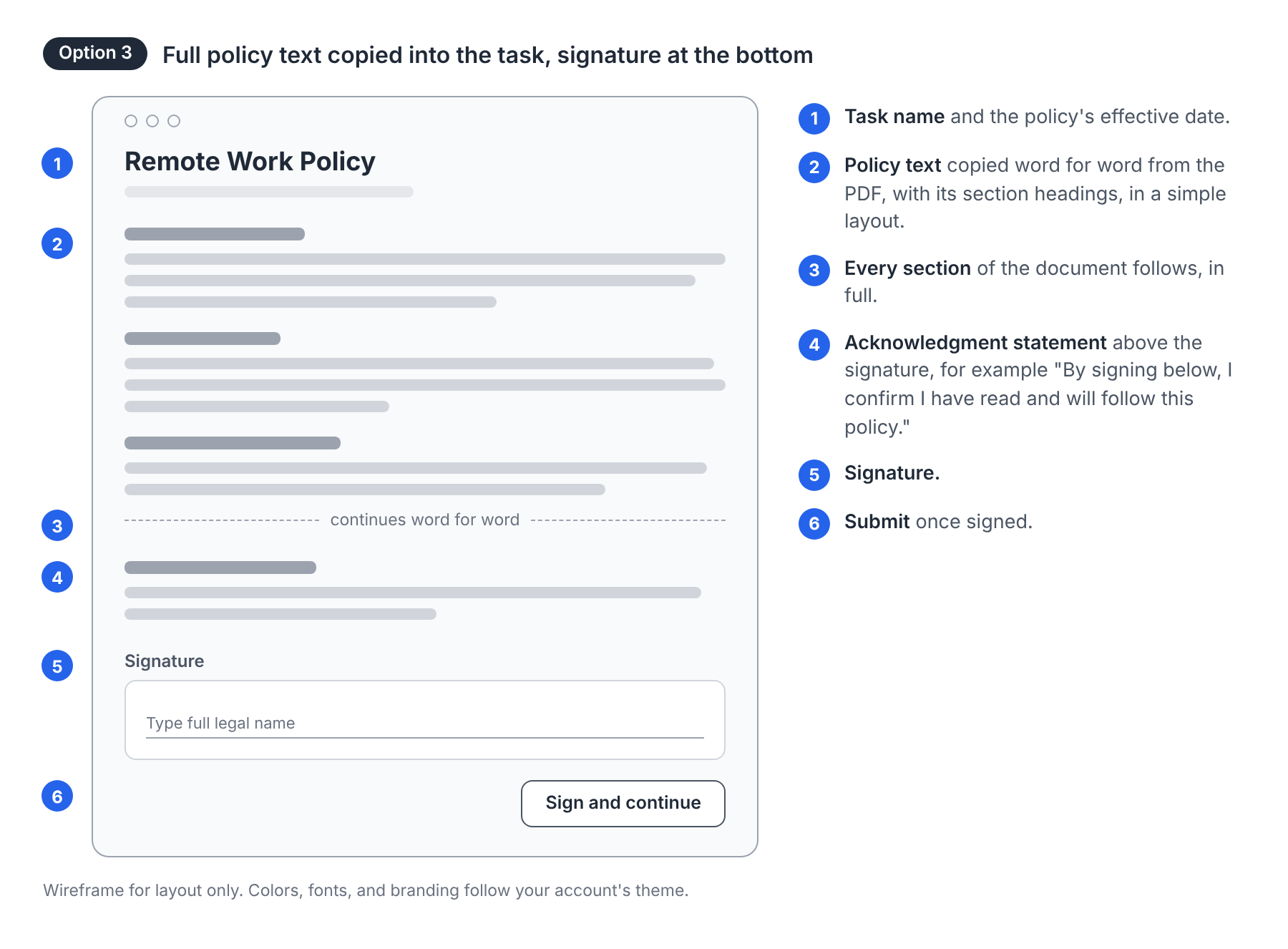
The document's full text goes into the task word for word, set as plain headings and paragraphs, with an acknowledgment statement and the signature at the bottom.
Works well when you want every word in front of the candidate and readable on any screen size.
Watch for drift. The copy has to match the source exactly, and when the document changes, the form needs a new version.
How it's built: 📄 How do I add a content block with variables to a form?
The three layouts side by side
Option 1: Full document | Option 2: Summary and link | Option 3: Text in the task | |
|---|---|---|---|
Candidate sees the original document | Yes, inside the task | Only if they open the link | The words, in a simpler layout |
Onboarded records they accessed the PDF | Yes | No. The attestation and signature serve as the verification. | No. The signature at the bottom serve as the verification. |
Comfortable on a phone | For short documents | Yes | Yes, though long documents mean a long page |
When the document changes | Swap the PDF and publish a new version | Update the linked PDF and the summary | Re-copy the text and publish a new version |
What all three have in common
All three hold up as an acknowledgment, because the signature is tied to the exact form version the candidate saw, along with when they signed. See 📄 Understanding signatures and acknowledgments for how signatures are captured.
Check with whoever owns the document before you pick a summary. Some client contracts and legal teams require the candidate to see the full document as issued. If yours does, use option 1.
Example
Take a staffing account with three documents to acknowledge.
A one-page remote work policy that changes once a year. Option 3 fits: it's short enough to read in full on a phone, and the yearly re-copy is small.
A 40-page client security policy. Option 2 fits: candidates get the five rules that matter on day one, the link opens the full PDF, and the attestation names the full policy.
A client harassment policy the client's contract says workers must see as issued. Option 1 fits, even though it's longer, because the requirement comes first.
The account names the layout for each document in its handover notes, so each new client policy gets built the same way.