How do I add an action to a form in a policy?
Last updated: November 5, 2026
Add an action to a form in a policy so the next step — like handing the employer's part of an I-9 to the right person — happens on its own. If the same step should apply to a form across several policies, or to several forms, use an automation instead (see 📄 Understanding automations).
Before you start
A policy with at least one form attached. See 📄 How do I build a policy? if you're not there yet.
Permission to edit policies.
A policy you can edit. Policies from the Onboarded Compliance Library are view-only until you click
Detach— see 📄 Understanding policies.
Steps
Take an account where an HR coordinator completes Section 2 of the I-9 for every candidate. Here's how to have the policy hand them the task as soon as the candidate finishes Section 1.
Open
Policiesand click the policy.In
Forms, click the form to expand it.You'll see its
ConditionsandActions.
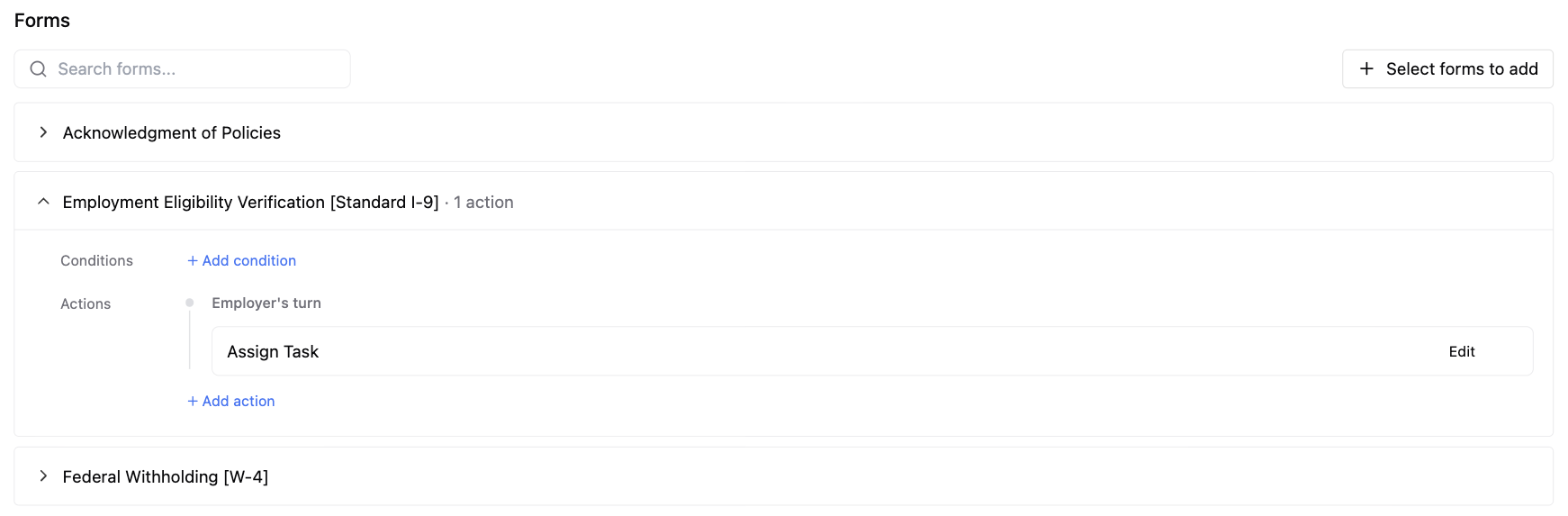
Click
Add action.The
Add actionpanel opens, with the form already filled in underApply to form.Under
When, chooseEmployer's turn.The line under it reads "when the next action moves to the employer".
(Optional) To run the action only for some placements, click
Add conditionand build the rule, the same way as a policy rule — for example, onjob.address.state.Under
Action, chooseAssign Task, then choose who the task goes to.
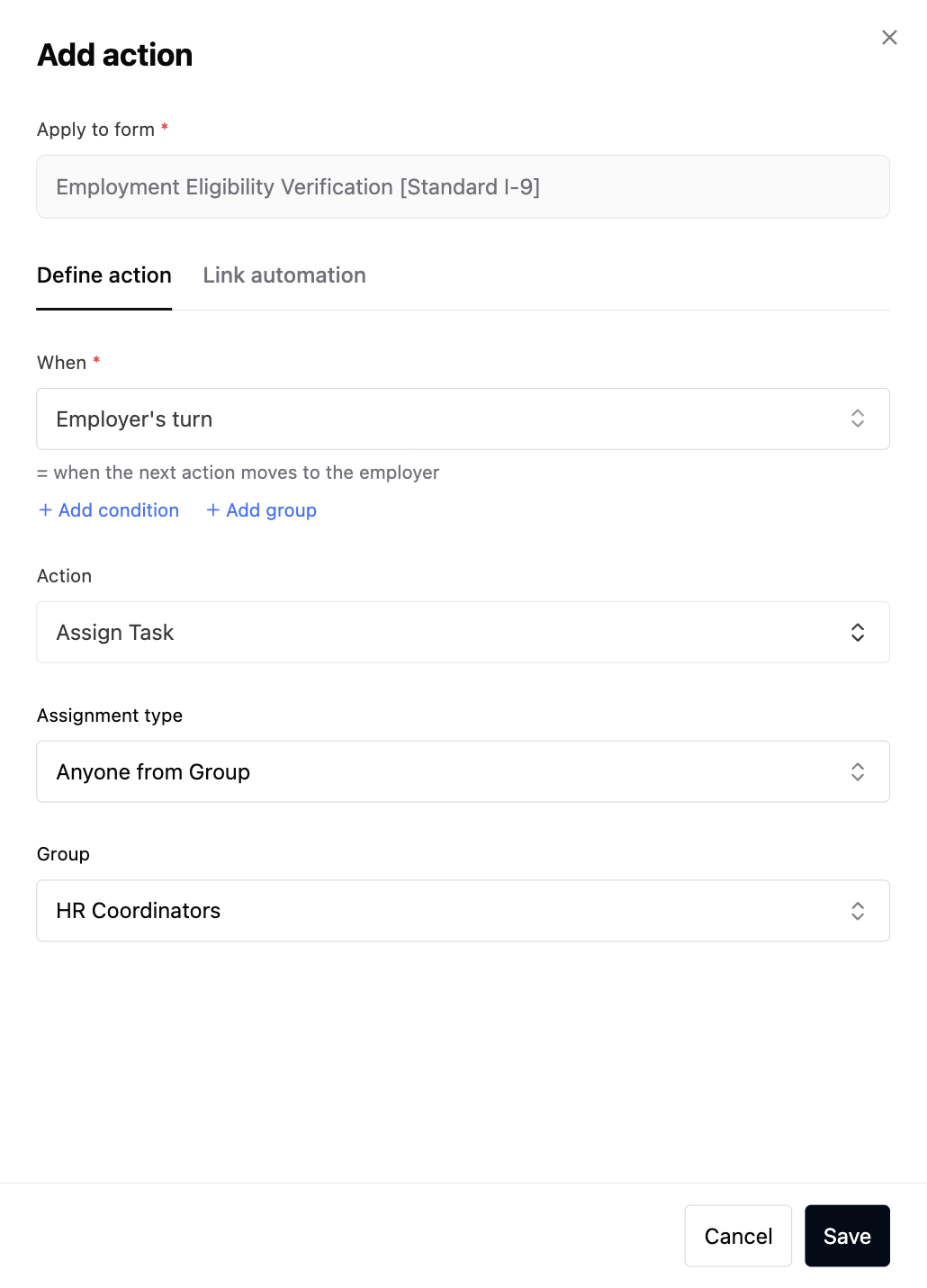
Click
Save.The form now shows
1 action, withAssign Tasklisted underEmployer's turn.
Changing what an action does, or removing it, only affects forms the policy assigns after you save. Forms it has already assigned keep running the action they started with.
What you can choose
When the action runs:
Task created— when the task is created.Employee's turn— when the next action moves to the candidate.Employer's turn— when the next action moves to your team.Task completed— when the task is completed.Task expired— when the task expires.Custom condition— when a condition you set is met.
What the Action does:
Assign Task— assigns the task to a person or a group on your team.Send Email— emails the candidate or any address you enter.Send SMS— texts a phone number you enter or map from the task.Create Task— starts a task for another form.Create Suggested Task— adds another form to the placement's requirements. CheckAlso create task immediatelyto start it right away.Create Onboarding Link— creates an onboarding link for the task, with the same choices as in the dashboard: link type, assignee, language, redirect, theme and one-time passcode.Set Task Expiration— sets when a task expires.HTTP Request— sends data to another system.Count Placements— counts the candidate's open placements linked to the task. It needs no setup.
The panel has two tabs. Everything above happens on Define action. Already built an automation for this? Open Link automation and click the automation in the list to attach it instead.
Verify
Create a test placement that matches the policy, then complete Section 1 of the I-9 as the candidate. The I-9 is now assigned to the person you picked.
If it isn't, check:
The policy is enabled. A disabled policy doesn't assign forms, so their actions never run.
The action sits on the right form, under the right
When.Any condition you added matches what's stored exactly — case included.
The placement was created after you saved the action.
Related
📄 Understanding policies (Concept)
📄 How do I build a policy? (How-to)
📄 Automation triggers and actions reference (Reference)
📄 Understanding automations (Concept)