How do I brand an automation email with my theme?
Last updated: August 26, 2026
Select a theme on a Send Email action and the message renders in your branding instead of Onboarded's. How much changes depends on the template: the header templates use your logo and header color, the button templates use your button colors.
Before you start
A theme with your logo and colors set. See 📄 How do I build a theme?.
An automation with a
Send Emailaction. See 📄 How do I send an email from an automation?.
Apply the theme
Open your automation and select the
Send Emailaction you want to brand.In
Email template, pick a template that uses the branding you want.Onboarded - Header + ContentandOnboarded - Header + Content + Buttonopen on your logo; the two+ Buttontemplates color the button.In
Theme, select your theme. It defaults toNo theme.Save the automation.
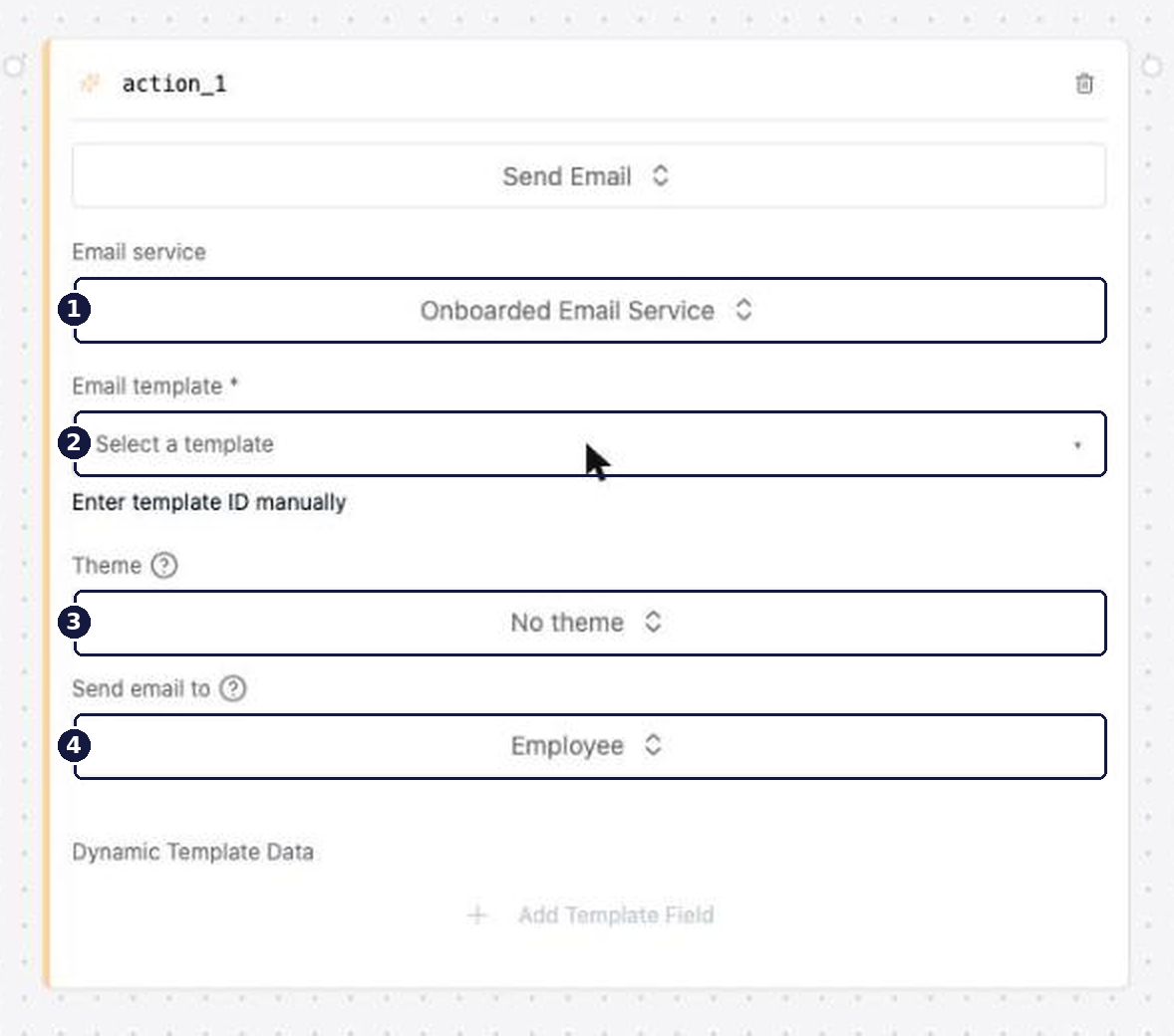
What your theme controls
Four theme settings reach the email, and which of them apply depends on the template. Everything else about the message — spacing, typography, the frame — belongs to the template.
Theme setting | Where it shows | Used by |
|---|---|---|
| The image in the header band. | The two header templates |
| The band behind the logo. | The two header templates |
| The call-to-action button's fill. | The two button templates |
| The call-to-action button's label. | The two button templates |
Your theme's Header Text Color reaches the email too, but no standard template uses it — the header band holds your logo and nothing else.
One template, Onboarded - Content, uses no theme branding at all. Selecting a theme on it is harmless and changes nothing in the delivered mail.
Only the light variant is used
A theme holds a light and a dark variant. Email always renders the light one. A mail client gives no signal about the reader's color scheme the way a browser does, so there's nothing to switch on — an email can only commit to a single appearance.
If your logo is set only on the dark variant, the header band renders empty. Set a logo on the light variant of any theme you plan to use in email.
Pair a header template with a theme, always. The header band draws the logo with nothing behind it to fall back on, so a header template left on No theme opens on an empty logo in an unstyled band. If you want the branded opener, select a theme; if you don't have one ready, choose Onboarded - Content or Onboarded - Content + Button instead.
Verify
Run the automation against a test placement and open the delivered message. You should see your logo on your header color, and — on a button template — a button in your primary button colors. For a safe way to trigger the run, see 📄 How do I test an automation before publishing?.
If the run fails with Email theme not found, the theme selected on the action has since been deleted or moved to another account. Onboarded stops the run rather than send an unbranded message — reopen the action and select a theme that still exists.