Understanding domain verification and membership requests
Last updated: August 19, 2026
Verifying a domain proves to Onboarded that you control it. Once a domain is verified, new users who sign up with an email on that domain can request to join your organization instead of starting a separate one.
What it is
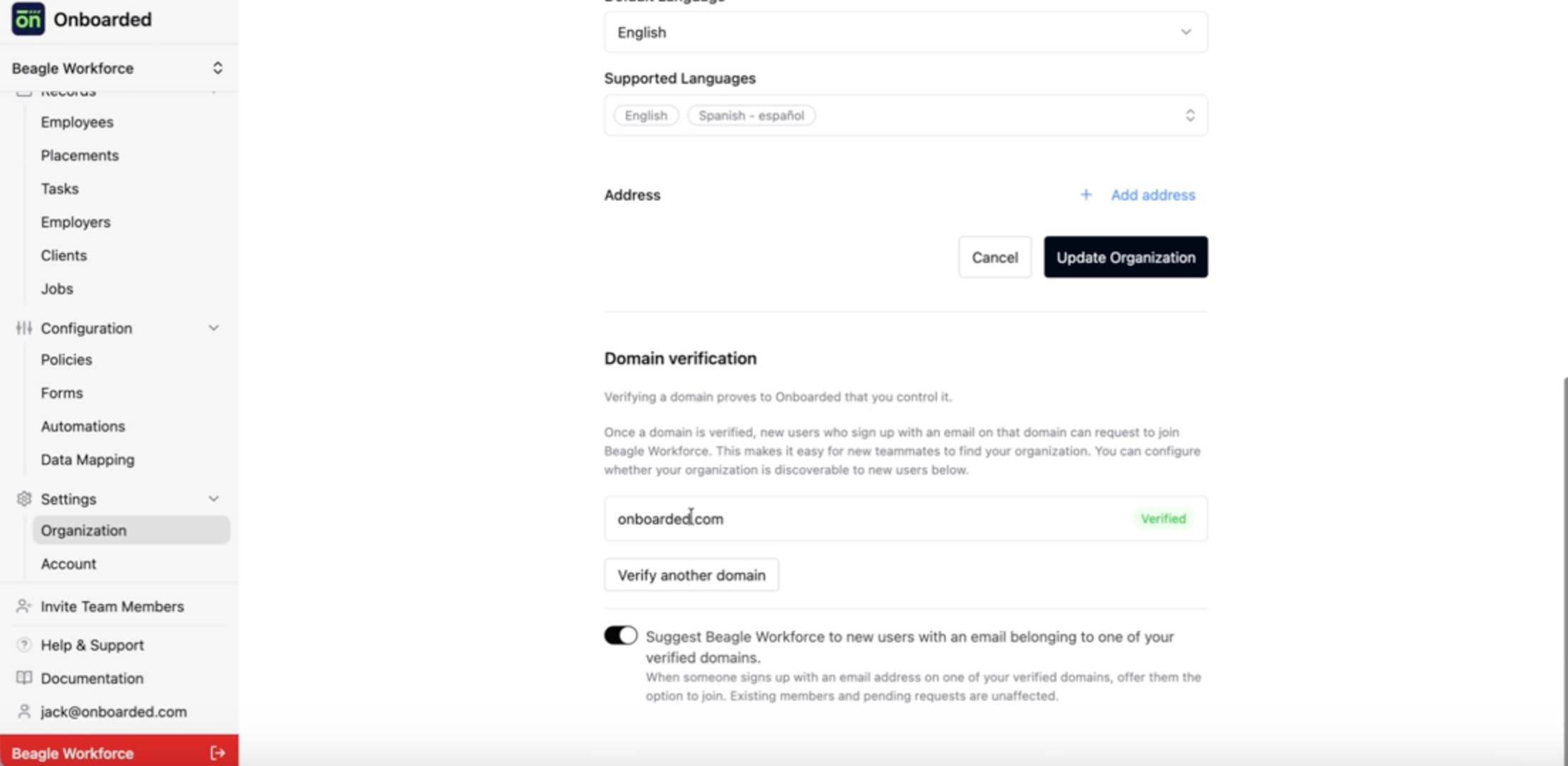
Domain verification is how you prove you control an email domain like acme.com. You verify it from Organization Settings → Edit Organization by adding a DNS TXT record that Onboarded generates for you. Once that record is detected, the domain appears in your Domain verification list with a Verified badge.
A membership request is what verification unlocks. When someone signs up for Onboarded with an email on one of your verified domains, Onboarded opens a request to join your organization on their behalf and holds them on a waiting screen until someone on your team approves or declines it.
If you remember nothing else: verification proves ownership of a domain, and membership requests are what that ownership buys you.
Why it matters
A new teammate who signs up for Onboarded on their own — without an invitation — lands in a brand-new, empty organization. That organization has its own users, forms, policies, and billing, and it can't be merged into yours later. Verification turns that dead end into a request you can approve in a few seconds.
This matters most when:
Your team is growing and people sign themselves up before anyone thinks to invite them.
You run onboarding across several departments and don't want to be the bottleneck on every invitation.
How it works
Verifying a domain
Selecting Verify your domain opens a hosted verification portal. You enter the domain, the portal generates a DNS TXT record, and you add that record at your DNS provider. When the record is detected, the portal marks the domain verified and returns you to your organization settings.
A few things to know in practice:
The
Verifiedbadge can take a moment to appear after you finish in the portal. Refreshing the page picks it up.You can verify more than one domain. Every verified domain produces matches independently.
Personal email providers never match. Addresses on domains like
gmail.com,outlook.com, andicloud.comare excluded, so a personal address can't be used to request access to your organization.If the
TXTrecord is removed later and the domain loses verification, it drops off your list and stops producing matches. Leave the record in place.
What a new user sees
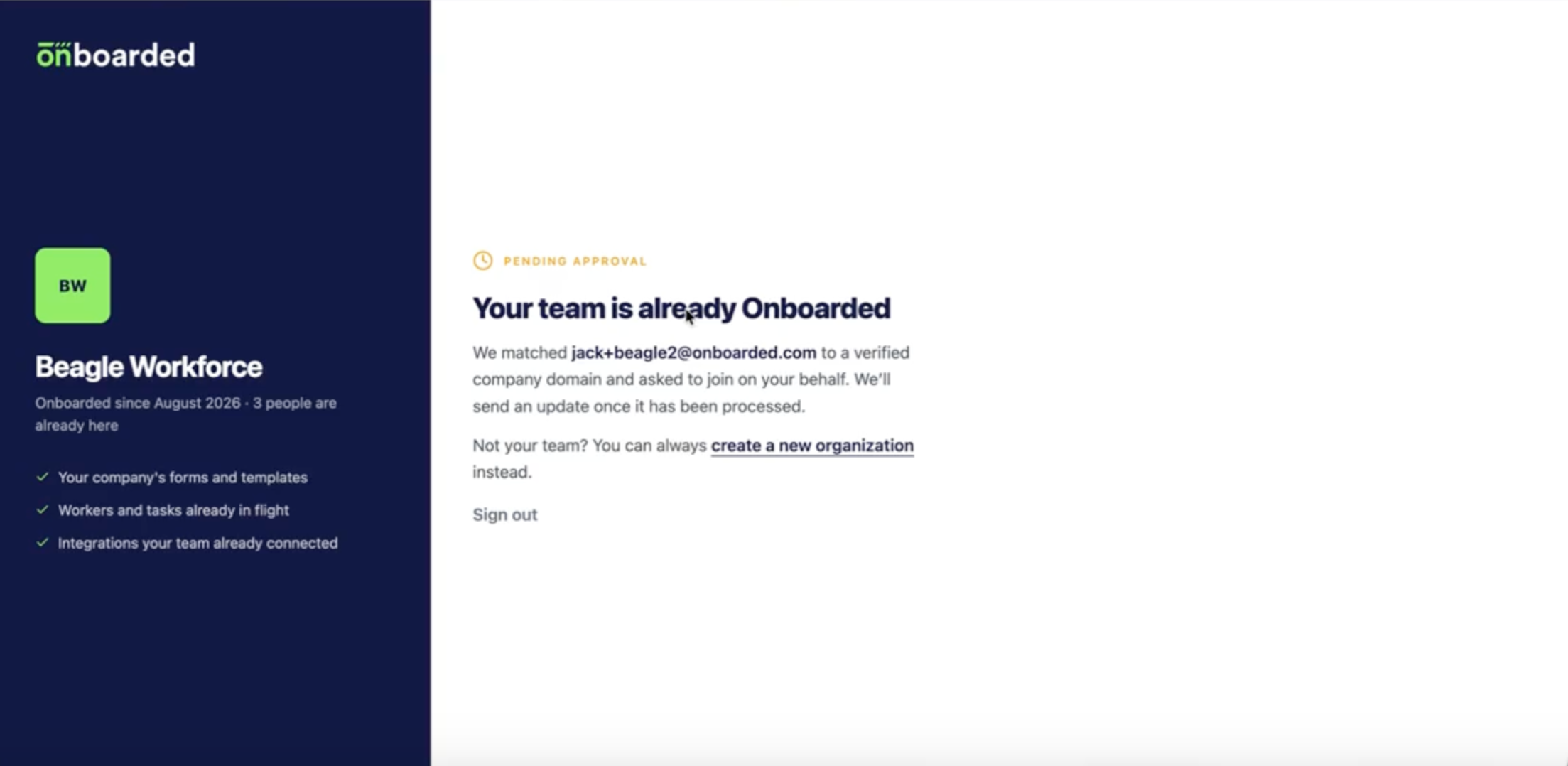
When someone signs in for the first time, Onboarded compares their email domain against the verified domains of every organization that has discoverability turned on, and opens one request per match. Someone at a company running two Onboarded organizations sees both named on their screen, which is how they tell whether the one they want is in the list.
They land on a screen headed Your team is already Onboarded with their request marked Pending approval. From there they can wait, or step away and create their own organization — which withdraws every pending request they were holding. Onboarded emails them a confirmation, and emails your organization at its Business Email to say a request is waiting.
Two settings decide whether requests reach you.
Discoverability is on as soon as a domain is verified — you don't turn it on, you turn it off. And the notification goes to the Business Email on Edit Organization, not to every admin. If that address is unmonitored, requests will sit unnoticed until someone opens the Membership requests tab.
Approving, declining, and withdrawing
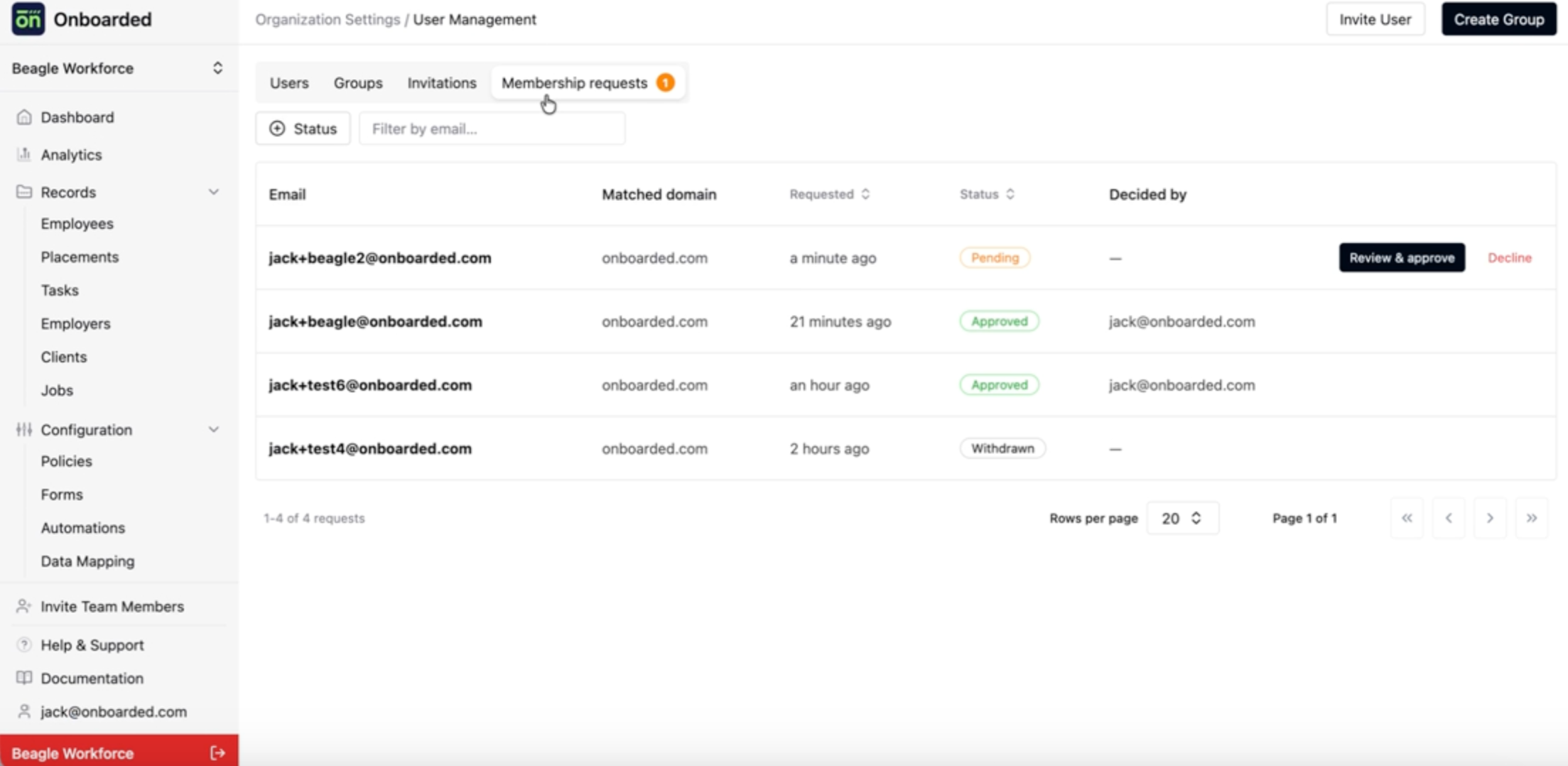
Requests live on the Membership requests tab under Organization Settings → User Management, with a badge on the tab showing how many are pending. Each request carries one of four statuses:
Pending— waiting on a decision from your team.Approved— membership granted. The person gets access immediately and receives an email.Declined— turned down. This is permanent for that person and that organization.Withdrawn— the requestor abandoned it and created their own organization. They can request again later.
Approving requires you to pick at least one user group, because groups are what give the new member permissions and views. Declining is the one decision you can't walk back: that person can't request to join again, and the only way to bring them in afterward is a direct invitation.
SSO organizations
If your organization requires SSO, none of this applies to joining. Memberships are created when users sign in through your identity provider, so Onboarded hides both the invitations and membership request surfaces. You can still verify domains — verification is independent of how people sign in.
Example
Take an account at northwind.com that has verified its domain and left discoverability on. A new recruiting coordinator signs up with her work email on a Tuesday afternoon. Instead of a fresh empty organization, she sees the Northwind name and logo with her request pending, and Onboarded emails the address on Northwind's organization record.
The next morning an Admin opens Organization Settings → User Management, sees 1 on the Membership requests tab, and finds her row with northwind.com in the Matched domain column. She adds her to the Recruiters group and approves. The coordinator gets an email, signs back in, and lands in the same organization as the rest of her team — with the forms, policies, and views the Recruiters group already grants.
Had a contractor signed up with a gmail.com address, nothing would have matched and no request would have been created.