How do I review and approve membership requests?
Last updated: August 19, 2026
You'll find the people waiting to join your organization, give them the right user groups, and approve or decline each request.
Before you start
Permission to create user groups in your organization.
At least one verified domain, with discoverability left on.
A decision on which user group each new member belongs in — approving requires at least one.
Steps
Find the requests
Go to
Organization Settings → User Management.Open the
Membership requeststab. A badge on the tab shows how many requests are pending; with none pending there's no badge.Narrow the list if you need to.
Statusfilters toPending,Approved,Declined, orWithdrawn, andEmailfilters by address.
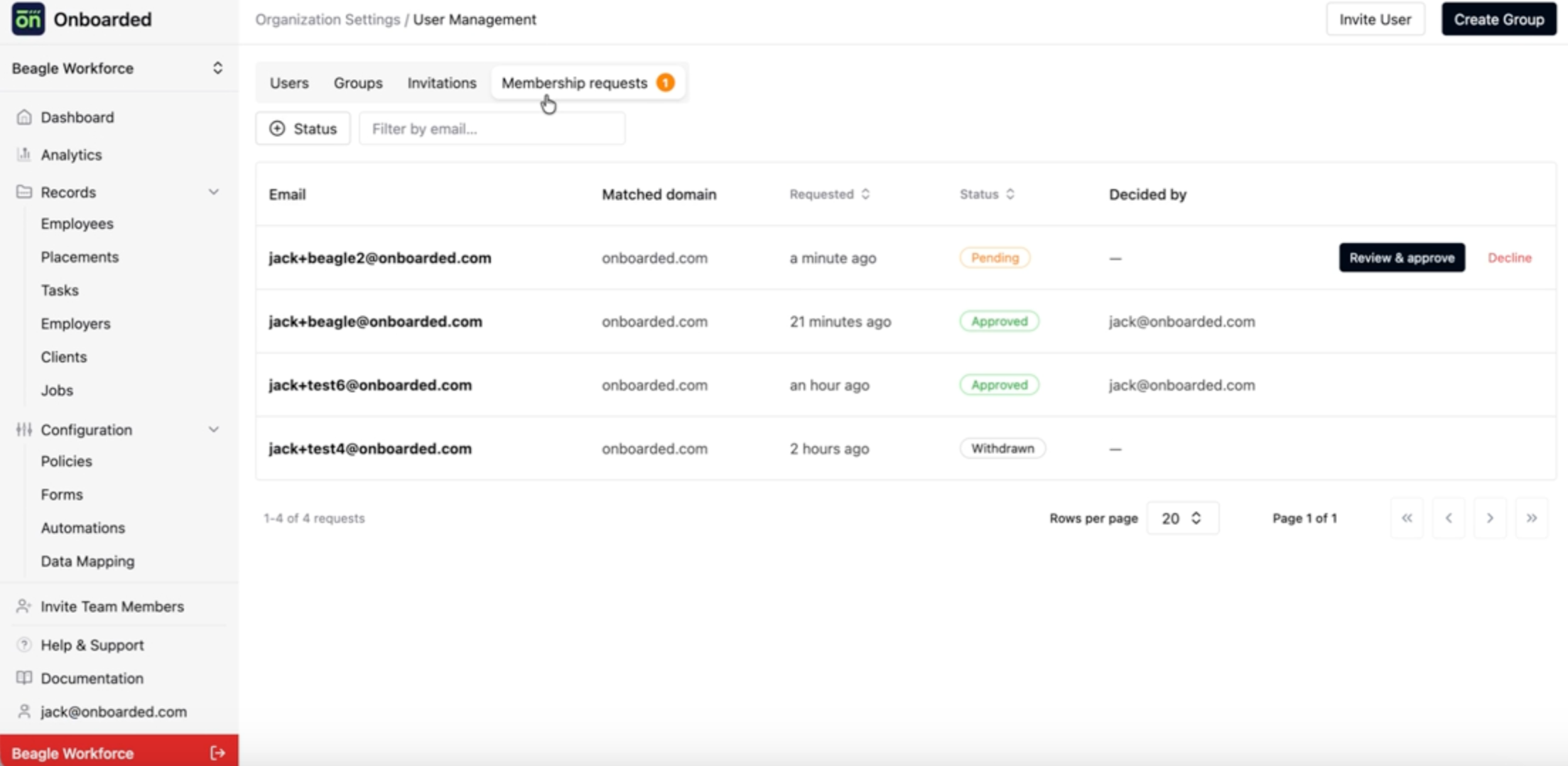
Each row tells you who asked, which of your verified domains their address matched, how long the request has been waiting, and — once decided — who decided it.
Approve a request
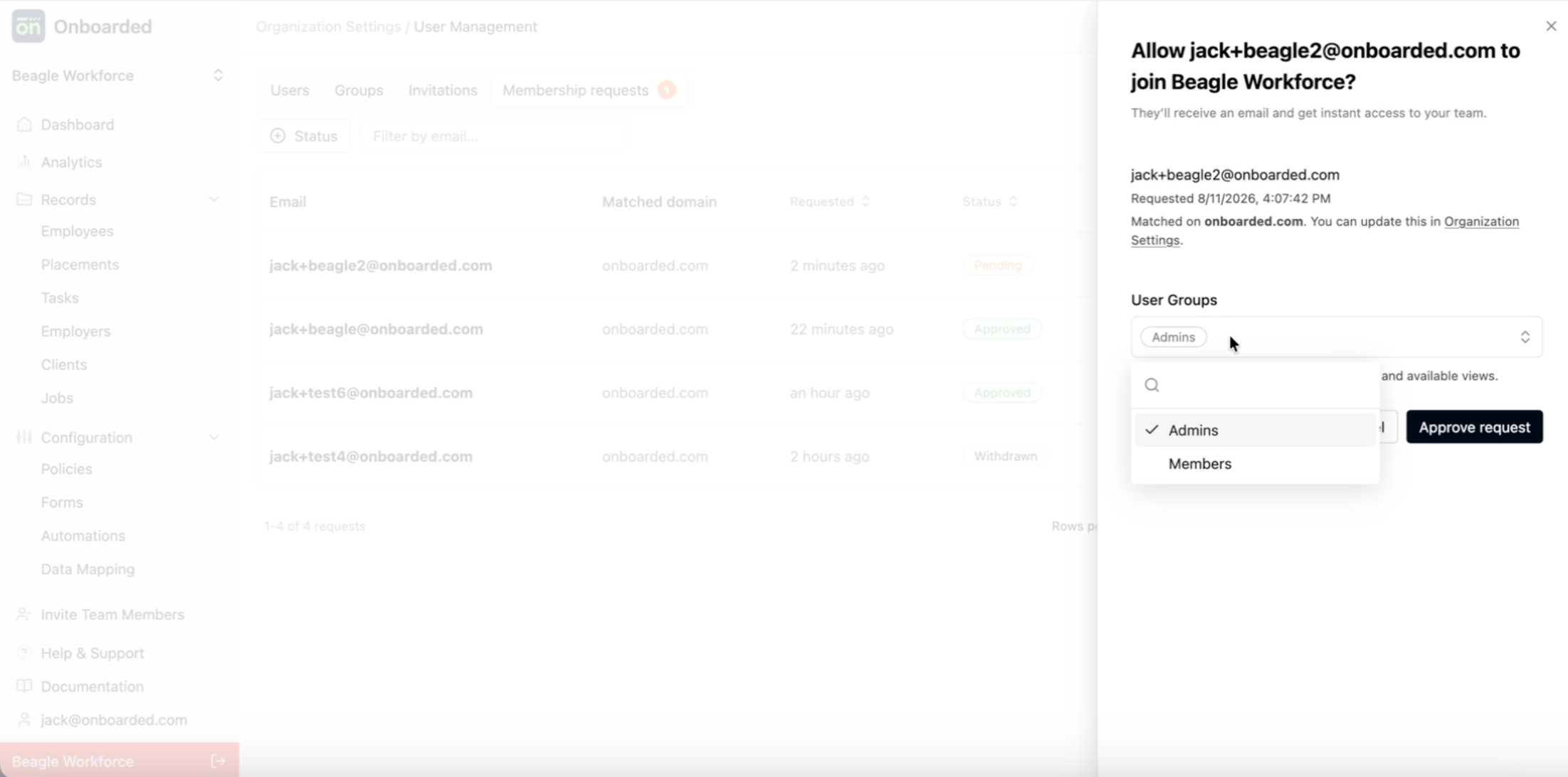
On the row you want, choose the approve action. A panel opens headed
Allow {email} to join {your organization}?Select one or more groups under
User Groups. This is required — groups define the new member's permissions and the views they can open.Select
Approve request.Confirm the row's
Statusis nowApprovedand your name appears underDecided by. The new member is added immediately, shows up on theUserstab, and gets an email letting them know.
Decline a request
On the row you want, choose the decline action.
Read the confirmation dialog, then select
Decline request. The row moves toDeclinedand the requestor is emailed.
Declining can't be undone.
That person will not be able to request to join your organization again. If you decline by mistake, the only way to bring them in is a direct invitation. They can still go on to create their own separate organization.
Verify
An approved requestor appears on the Users tab with the groups you assigned, and the Membership requests badge drops by one. If the badge doesn't move, refresh — the count is read when the page loads.
Two messages come up often:
This request is no longer pending.Another admin decided it while you had the panel open, or the requestor withdrew it. Refresh to see the current status.This person is already a member of your organization.They were invited and accepted while the request was open. Nothing more to do — check theUserstab to confirm.
If the Membership requests tab isn't there at all, your organization requires SSO. Memberships are created when users sign in through your identity provider, so there's nothing to review.