How do I add a button to an automation email?
Last updated: August 26, 2026
Pick one of the two button templates, then fill button_text and button_link under Dynamic Template Data. The most common destination is an onboarding link produced by an earlier action in the same automation.
Before you start
An automation with a Send Email action. If the button points at an onboarding link, the action that creates that link has to sit before the email in the graph. See 📄 How do I build an automation?.
Add the button
Open your automation and select the
Send Emailaction.In
Email template, chooseOnboarded - Content + Button, orOnboarded - Header + Content + Buttonif you also want the branded header band.Scroll to
Dynamic Template Data. Choosing the template adds a row for each variable it expects, sobutton_textandbutton_linkare already waiting with their names filled and their values blank. If you typed a template ID by hand and Onboarded can't read it, add both rows yourself withAdd Template Field.Set the
button_textvalue to the label candidates will read —Start onboarding,Complete your paperwork, something that names the action.Set the
button_linkvalue to the destination. Type#in the value field to pull up the variable picker, and select the link from your upstream action — for aCreate Onboarding Linkaction namedcreate_onboarding_link, that's{{create_onboarding_link.onboarding_link}}. A fixed URL works here too.Save the automation.
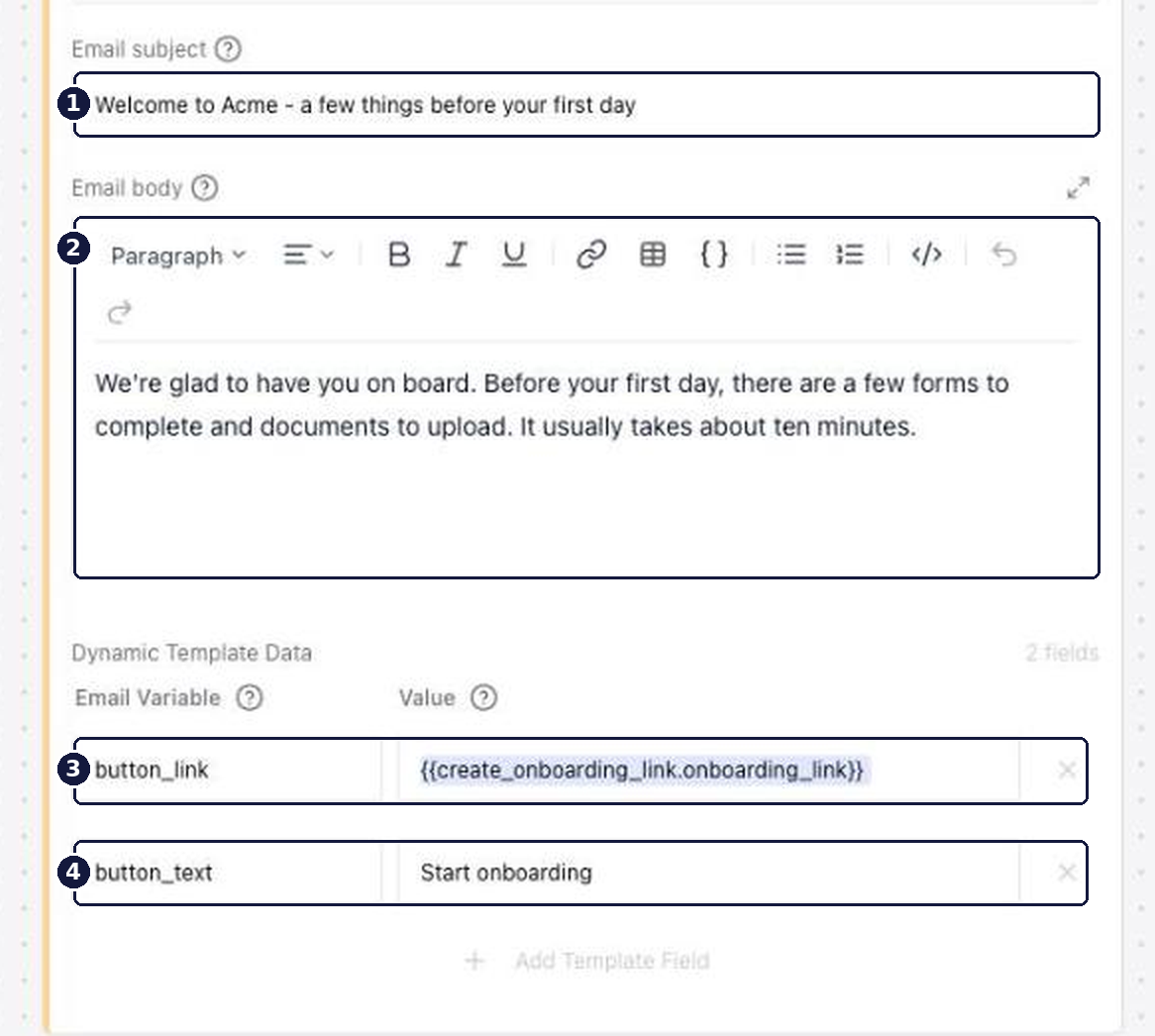
Fill both rows, and mind the spelling of button_link. A row with a blank value is discarded when the automation saves, and a row under a name the template doesn't reference — button_url is the near miss that catches people — is ignored at send time. Either way the email delivers successfully with a button that goes nowhere, and nothing in Onboarded flags it.
Where the button gets its color
The button's fill and label colors come from the theme selected on the action, not from anything you set here. With No theme selected, the button renders in the template's default colors and still works. See 📄 How do I brand an automation email with my theme?.
Verify
Run the automation against a test placement and open the delivered email. Confirm the button carries your label, then select it and confirm it lands where you intended rather than on a blank page.
A button that opens nothing usually means button_link resolved empty. Open the Events panel for that run, select the email action, and read the Data tab — a path sitting at null is the one that dropped out. The two usual causes are a misspelled variable name and an upstream action that actually runs downstream. See 📄 How do I check an automation's run history with the Events panel?.